Festival prompt
Christmas Gemini Prompt for Girls
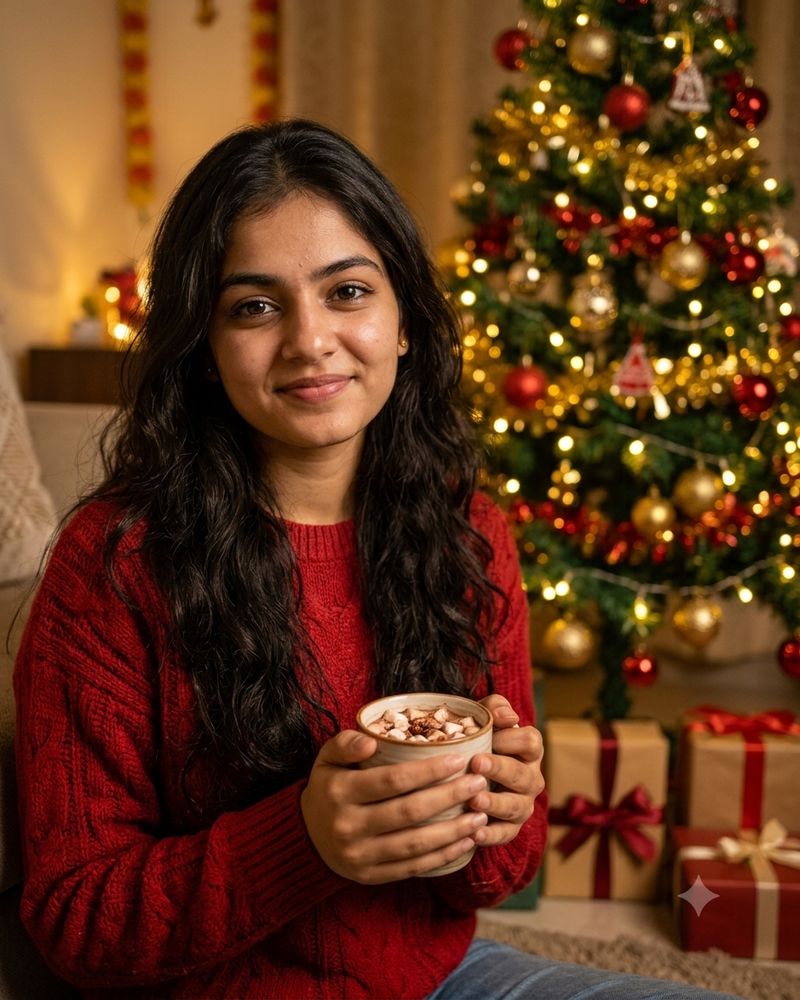
Free Christmas Gemini AI photo editing prompt for girls. Copy, paste, upload your photo and get a cosy red-sweater Christmas portrait in seconds.

Copy this prompt
Upload your own clear photo in the AI app first, then paste the prompt. Results can differ a little between tools.
Prompt variations
Same idea, different scene. Each one has its own copy button.
Snowy outdoor
Santa hat selfie
On this page
What this look is and who it suits
This is a Christmas Gemini prompt for girls that turns an ordinary photo into a warm, cosy festive portrait. In the finished picture she wears a soft red knitted sweater, sits beside a decorated tree with golden fairy lights, and holds a mug of hot chocolate. The background melts into glowing bokeh, and a few wrapped gifts sit near the tree. It looks like a photo from a family Christmas morning, not a heavy edit.
The look suits almost anyone who wants a gentle, friendly festive picture. It works well as an Instagram post, a WhatsApp profile picture, a Christmas greeting or a status for friends and family. It is a good choice if you live in a warm Indian city and do not own a woollen sweater, because the AI dresses you in one. It also suits office groups, college friends and school communities, since nothing about the styling is revealing or dramatic.
The prompt asks Gemini to keep the face, skin tone and hairstyle exactly the same. So the edit changes the clothes, the light and the place, but not who you are. That is why the result feels personal and not like a stock image.
How to use this Christmas Gemini prompt for girls
- Open the Gemini app on your phone or go to gemini.google.com and sign in with your Google account.
- Tap the plus icon and upload your photo. Choose one clear, front-facing picture.
- Copy the full prompt from the box on this page and paste it into the message field.
- Send it and wait a few seconds. Gemini usually gives you one edited image.
- If you like the scene but the face is slightly off, do not start again. Reply in the same chat with a short line such as “Keep the face closer to my original photo, everything else is perfect.”
- Tap the download icon to save the final image.
Gemini is good at remembering the scene during a chat, so small follow-up instructions usually work better than rewriting the whole prompt. If your first result has a wrong colour or an odd gift box, just ask for that one change.
How to use it in ChatGPT
- Open ChatGPT in the app or browser and start a new chat.
- Tap the attach button and upload your photo.
- Paste the prompt. At the end add one more line: “Use my uploaded photo as the reference for the face.”
- Send the message. Image creation can take up to a minute, so wait for it to finish.
- To fix something, reply with one clear change, for example “Make the sweater slightly less bright red”.
ChatGPT tends to give a smoother, more polished picture. If the skin looks too perfect, add “natural skin texture, no airbrushing” to the prompt. If your free plan has a limit on image edits, you may need to try again later in the day.
Photo tips for the best result
The AI can only keep your face if it can see your face clearly. A few simple habits make a big difference.
- Light: Stand near a window in the daytime, or use soft light from the front. Avoid harsh shadows under the eyes or one half of the face in darkness.
- Angle: Hold the phone at eye level. A photo taken from far below or far above changes how the face is read by the AI.
- Face visibility: Remove sunglasses and keep hair away from the eyes. A small, natural smile works best because the prompt also asks for a gentle smile.
- Framing: Use a chest-up or waist-up photo. A tiny face in a full-length picture often comes back changed.
- Background and filters: A plain wall is fine. Do not use beauty filters or heavy Instagram filters before uploading, because the AI copies them.
- Hands: If the original photo already shows your hands, the mug is easier for the AI to draw. If not, it will invent hands, which is where most mistakes happen.
How to customise the prompt
You do not need to be technical. Change only the words that describe the sweater, the place or the mood, and leave the first sentence about keeping the face the same.
- Outfit colour: Replace “soft knitted red sweater” with “deep green knitted sweater” or “cream cable-knit sweater with a white scarf”.
- Drink: Change the “mug of hot chocolate” to “cup of masala chai” for a very Indian winter feel. It still looks festive and the AI draws cups well.
- Background: Replace the tree with “a cosy fireplace with hanging stockings”, “a balcony with string lights” or “a small cafe table by a window”.
- Lights: Switch “warm golden fairy lights” to “soft white fairy lights” for a calm, modern look.
- Mood: Change “gentle natural smile” to “soft laugh looking down at the mug” for a candid feel.
A good rule is to change no more than two details per try. If you change everything at once, the face and the lighting usually drift.
The two variations
The snowy outdoor version puts her on an evening street in a cream woollen coat, red scarf and beanie. It is a good option if you want a full-length or waist-up picture and do not want a room setting. Use a photo where your upper body is visible so the coat has something to attach to.
The Santa hat selfie is bright and playful. It suits younger users and is best for a close-up input photo, since it looks like a selfie. Use it for a WhatsApp status or a fun greeting for friends.
Common problems and fixes
The face changed. Use a sharper, closer input photo and regenerate. Add “do not change the face shape, nose or eyes” if needed.
The hands or mug look strange. AI often draws extra fingers. Add “natural hands with five fingers” or ask for “both hands wrapped around the mug”. If it keeps failing, change the line to “mug resting on the table”.
The picture is square or wide, not 4:5. Add “vertical 4:5 aspect ratio, portrait orientation” at the end, or crop the result in your gallery.
Strange text on gifts or ornaments. AI often writes fake words. Add “no text, no logos, no writing anywhere”.
The skin looks too smooth. Add “natural skin texture, visible pores, not airbrushed”.
The sweater looks too tight or too bright. Add “loose, comfortable fit” or “muted, deep red”.
A note on responsible use
Only upload photos of people who are happy for you to edit them. Do not use the result to pretend a photo is real news or a real event.
Frequently asked questions
Is this Christmas Gemini prompt for girls really free?
Yes. You can copy it and use it as many times as you like. You only need access to Gemini or ChatGPT, and each app has its own daily limits on free image edits. Those limits change often, so check the app if an edit does not go through.
Which photo should I upload for the best result?
Use a clear photo with her face fully visible, facing the camera, in soft daylight. A chest-up or waist-up picture works best because the AI needs to see enough of the shoulders to draw the sweater and hold the mug properly.
The face in my result looks a little different. What should I do?
This is the most common problem. Try a sharper input photo, keep the opening line about keeping the face the same, and regenerate two or three times. In Gemini you can also reply in the same chat with 'Match the face in my original photo more closely'.
Can I change the sweater colour or the background?
Yes. Replace 'soft knitted red sweater' with 'forest green' or 'cream cable-knit', and change the tree setting to a fireplace, a balcony or a cafe. Change only one or two things at a time so the face and lighting stay stable.
Does this prompt work in ChatGPT too?
Yes, it was tested on both Gemini and ChatGPT in November 2026. ChatGPT sometimes gives a slightly more polished, less photographic look, so add 'natural skin texture, not airbrushed' if the skin looks too smooth.
More Festival prompts

New Year 2027 Couple Gemini Prompt
Free New Year 2027 couple Gemini AI photo editing prompt. Upload your couple photo and get a glamorous fireworks party portrait. Copy paste and try it now.
- Gemini
- ChatGPT